
Minion Agent Integration
Help ID: agent.integration
Minion Enterprise connects to Minion Agent through the same API client and sign-in dialog used by the Agent console. Agent remains responsible for permissions, credentials, scheduling, and execution. The existing Enterprise Jobs panel still shows collected SQL Agent jobs; Agent jobs are a separate operational surface.
Connect
Open Jobs > Minion Agent Jobs. ME > Minion Agent > Connection / Jobs and the Agent icon's Agent connection and jobs menu open this same tab. Expand Connection for installation, fleet, and sign-in settings; the header keeps the current fleet and identity visible while these settings are collapsed. Connection collapses automatically after a successful sign-in. Browse to the locally installed Minion.Agent.Wpf.exe if it was not detected. Only Agent integration requires this installation; Enterprise remains usable without it.
Choose one of the Agent console's saved fleets. Enterprise remembers its own fleet selection and does not rewrite the console's active selection. Each connection has its own fixed API address and authentication state. Switching to another fleet never carries the previous fleet's token across.
When the Agent Jobs page opens again, it restores the last successfully connected fleet and reconnects once automatically. An existing connection is reused. Windows sign-in reconnects as the current Windows user. App Account sign-in reuses Agent's existing protected remembered credentials when enabled; passwords are not copied into Enterprise settings. A missing/expired sign-in leaves the page available for Sign in as, without a retry loop or silently switching identities. Azure AD may require Sign in as again. Saved App Account credentials are never sent automatically over remote HTTP: click Connect to confirm that transport first. Opening the page never runs a job.
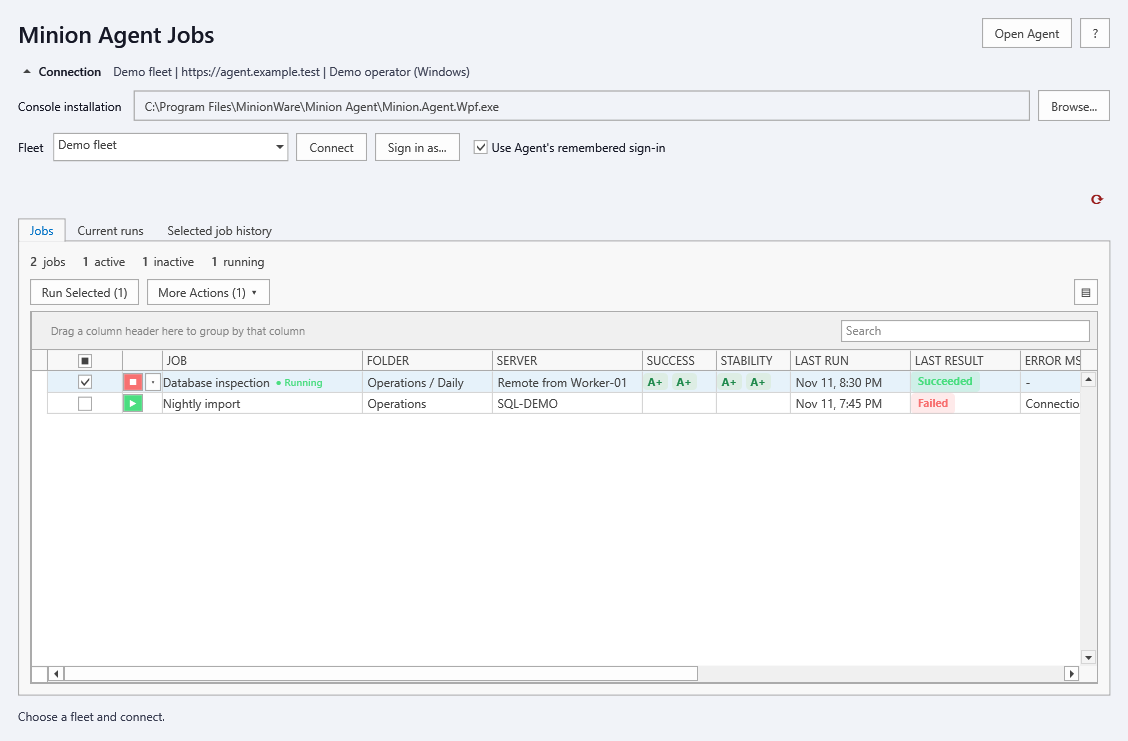
Connect uses Windows authentication, or the console's remembered App Account when Use Agent's remembered sign-in is selected. Remembered passwords stay in Agent's existing current-Windows-user-protected store; Enterprise does not copy them into its preferences or support bundles. Use Sign in as for Azure AD or an App Account. Remote HTTP endpoints require a warning before sending identity secrets; HTTPS is preferred.
The connection checks the API's supported client range and schema version before enabling operations. An unavailable or incompatible Agent does not affect unrelated Enterprise functions.
Jobs And Runs
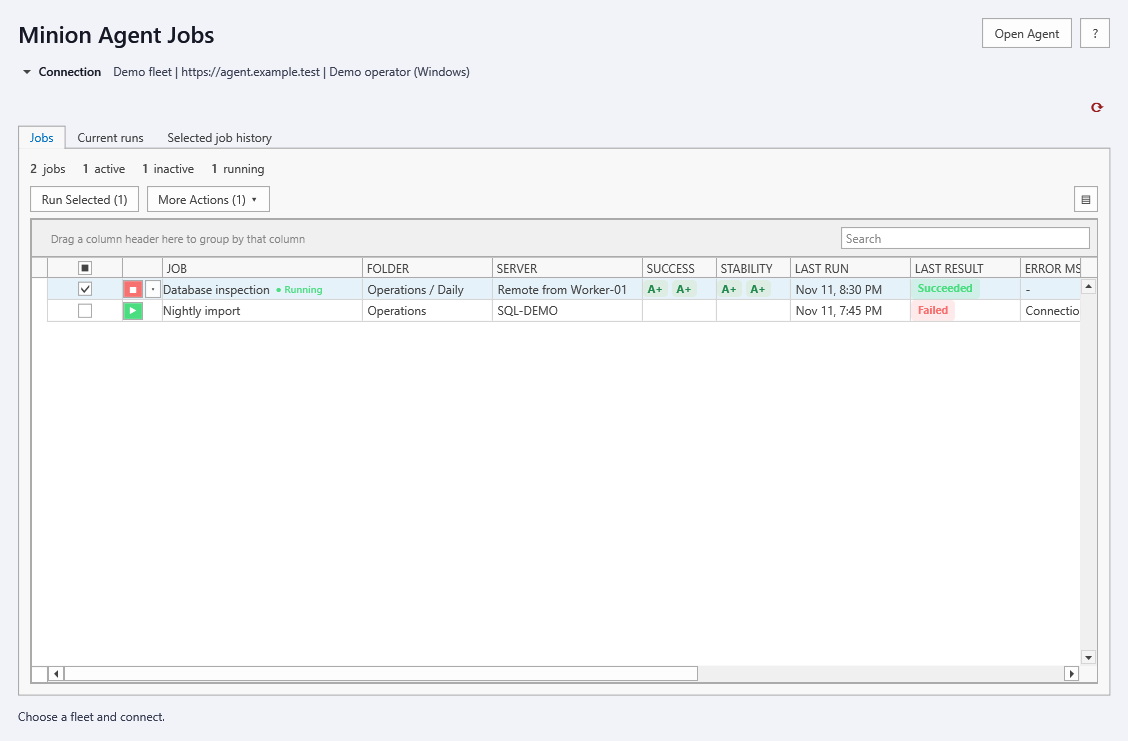
The workspace lists jobs, current runs, and history for the selected job. Use the shared refresh icon to reload or configure automatic refresh. No jobs run merely because this window opens.
Both Enterprise and Agent now host the same AgentJobListControl from Minion.Agent.Presentation. It retains Agent's job/folder/server columns, overall/recent success and stability badges, last-run/result/error information, description, active state, and modified time. Search, grouping, checkbox selection, Ctrl/Shift selection, and the column chooser belong to that grid. Refresh updates existing rows rather than replacing its data source. Each host supplies its own API commands and navigation; Agent retains its full job editor, folder/new-job/Trash controls, layout persistence, and schedule pause dialog. Enterprise retains its smaller confirmed-action surface and history navigation.
Run Selected and row run buttons ask for confirmation with fleet and signed-in identity. The API acknowledgement means queued, not completed. More Actions offers soft stop, hard stop, enable/disable, resume schedules, and delete to Agent Trash. The row stop caret also offers both stop modes. Soft stop finishes the current step; hard stop requests immediate interruption. Neither undoes completed work. The active checkbox also requires confirmation and returns to its previous value if cancelled or unsuccessful. Agent enforces permissions for every operation.
Running state is checked every three seconds while this view is visible and connected. Use the shared refresh control to reload definitions, history, and badges. Double-click a job to open its run history. The full job editor, new-job form, pause configuration, and Trash management remain in the installed Agent console for now.
Create Minion Agent Job
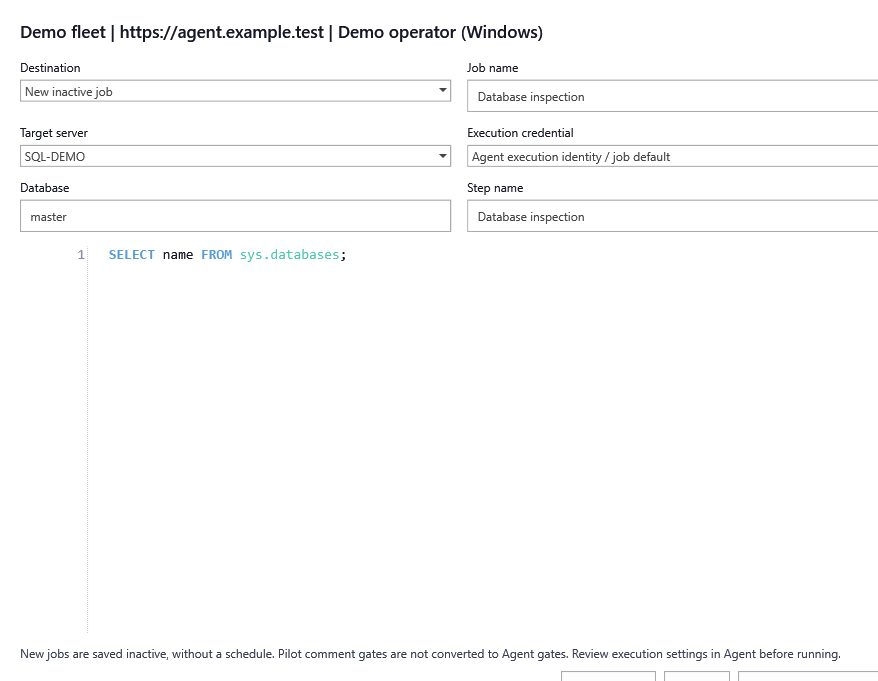
Right-click a Pilot tab and choose Create Minion Agent job, or select SQL and choose Create Minion Agent job in the editor menu. The tab action uses the whole tab; the editor action uses the selection. Connect first if necessary, then invoke the action again.
Choose New inactive job or Add step to an existing job, select an Agent-registered target server, and specify the database and execution credential. Review the SQL snapshot and step name before saving. New jobs have no schedule and are saved inactive. Adding a step does not deactivate an existing job or remove its schedules, so it requires an additional confirmation.
For example, save SELECT name FROM sys.databases; from a query tab as an inspection job, select a registered SQL Server, and enter master. The stored step has an explicit USE [master] database context. Your Pilot SQL connection password is never transferred.
Pilot's comment-based execution gates are not converted into Agent gates. Temporary tables and session variables from a live Pilot connection are not carried into an Agent execution. Configure the final job's schedules, gates, dependencies, and credentials in the Agent console before running it.
Saving uses several API calls. If one fails after a job is created, the message identifies that job for review; the form does not automatically replay an uncertain write or run the job.
Open Agent
Click the Agent product icon beside Backup, or Open Agent in the workspace. The installed console opens normally. Passwords and tokens are never passed on its command line; the standalone console retains its own active fleet.
Diagnostics
Enterprise stores only the console path and its fleet choice in %APPDATA%\MinionWare\MinionEnterprise\AgentIntegration.json. Support metadata contains connection labels, endpoint, identity, IDs, and SQL lengths, not SQL bodies or credentials. Agent's own audit and run history remain authoritative for server execution.
Documentation revision: 99FB5CB42ABEFB7D