
Dashboard Glass and Donut Effects
Material and Lifecycle
These controls apply to the Skia dashboard renderer, including main and backup dashboard widgets. The DevExpress report renderer supports native chart types and shared static bar graphics, but does not run these lifecycle animations. Ribbon, unfinished treemap treatments and Centrifugal Spin remain experimental and are not selectable production effects.
For Glass donuts and plain GlassPrism / GlassCylinder bars, choose the glass material once, then configure Reveal, Idle and Update independently. These are lifecycle slots, not additional themes. All three selectors offer the same effect catalog, including None. Existing saved liquid charts retain their entrance, with Idle and Update defaulting to None.
| Slot | When It Runs | Playback |
|---|---|---|
| Reveal | When the glass widget is first built, its appearance changes, or Replay entrance is pressed | One pass, then the selected Idle effect |
| Idle | After Reveal or Update finishes, or immediately when Reveal is None | Repeats at Idle cycle speed; None is still |
| Update | When loaded category values genuinely change | One pass on changed or newly added categories, then returns to Idle |
An identical refresh does not replay Reveal or Update. Categories are matched by label and occurrence for duplicate labels, not by the current row position alone. Removed categories disappear with the new data; they are not retained as phantom bars or slices. The update-preview icon deliberately previews the effect on all loaded categories without changing their values, rerunning SQL or saving chart preferences.
| Effect | Visual Behavior |
|---|---|
| None | No decorative motion in that slot |
| Ink bleed | Several small blooms spread organically through each bar or donut section, merging into its category color. Reveal and Update spread toward a filled shape. Idle repeatedly blooms and fades away before the next cycle. Ink never changes category boundaries or source values. |
| Liquid fill | A rising liquid surface; Surface ripple adds small ripples, Liquid slosh rocks the pool throughout the rise and settles afterward. Optional Spill over lets droplets cross the rim. |
| Particle rain | The same Liquid Fill, slosh and spill, plus falling particles that dissolve at its moving surface. Each impact produces a short splash crown, a few droplets and an expanding fading ripple. Density and particle size control the rain and splash scale, not the source values. The donut's center total stays clear of rain and spill. |
| Electrical trace | A visibly jagged discharge follows the outline, with flickering branches, a bright core and a sparking head. Unlike the smooth Arc sweep, its bolt and sparks keep changing even at the same outline position. Line / beam width scales its width and branching reach; trail length controls how much outline it occupies. |
| Embers | Luminous particles gather into the shape and settle |
| Energy transfer | A glow steps between categories; it is not actual data moving between them |
| Radar | A narrow angular scan lights only the area it is crossing, with a fading trail. In Idle it clears the completed reveal's solid color layer, so the beam and afterglow are the illumination, not an overlay on permanently filled sections. The glass faces and rims remain visible. |
| Cylon scan | A narrow eye eases out and back on the selected axis, illuminating only a moving strip of the glass and leaving a fading trail. Scanner color is independent of the category palette. Idle clears a completed reveal's solid fill; the optional Fill behind scanner setting adds its own controlled afterglow instead. One slot duration is one complete out-and-back pass. |
| Matrix rain | A shared field of green letters and digits rains through the chart. Characters turn into each section's palette color and become larger/bolder while inside it, then return to the code color after passing it. The characters themselves define the chart: no glass, outline, bevel or solid pane is drawn. Reveal starts sparse and accumulates a dense colored character shape; Idle only rains and never accumulates fill. A completed Reveal with Idle None keeps its character-built shape still. The text is generated decoration, never SQL or database contents. |
| Arc sweep | A soft luminous trail follows the container's outline |
| Pulse | A rising and falling light over the glass; a slow Idle cycle makes this a restrained breathing glow |
| Spotlight | A soft light travels across the container |
| Particle reveal | Particles appear within the shape before settling |
Each effect plays once in Reveal or Update and repeats in Idle. Keep Idle None for a quiet dashboard, or choose a longer Idle cycle for subtle motion. Reveal duration, Idle cycle and Update duration are separate, in seconds at normal Animation speed. Animate effects is the master motion switch for all three slots. Turning it off shows the finished material immediately. Hidden charts pause; unloading retires their clock. A completed finite phase keeps no animation clock unless an Idle effect is selected.
Motion yields to mouse and keyboard input. It pauses during native window move/resize and while an owned settings editor is open, leaving the editor's live preview active. The donut reuses its pixel buffer and temporarily stretches its cached frame during a resize instead of repainting the artwork at every drag step. Idle runs at up to 10 frames per second; finite effects at up to 20. These frame limits do not change effect durations, source values or data refresh timing.
Motion brightness is shared across the three slots and does not dim numeric labels. Line / beam width applies to Electrical trace, Arc sweep, Radar and Cylon scan; trail length applies to the two outline-trail effects and Cylon scan. Radar afterglow controls the radial scanned area's fade. Particle density and size apply to Embers, Particle reveal and Particle rain. These controls appear when one of the three slots uses the corresponding effect. Surface ripple, Liquid slosh and Spill over are enabled when any slot uses Liquid fill or Particle rain. Palette and material glow remain the existing chart appearance controls.
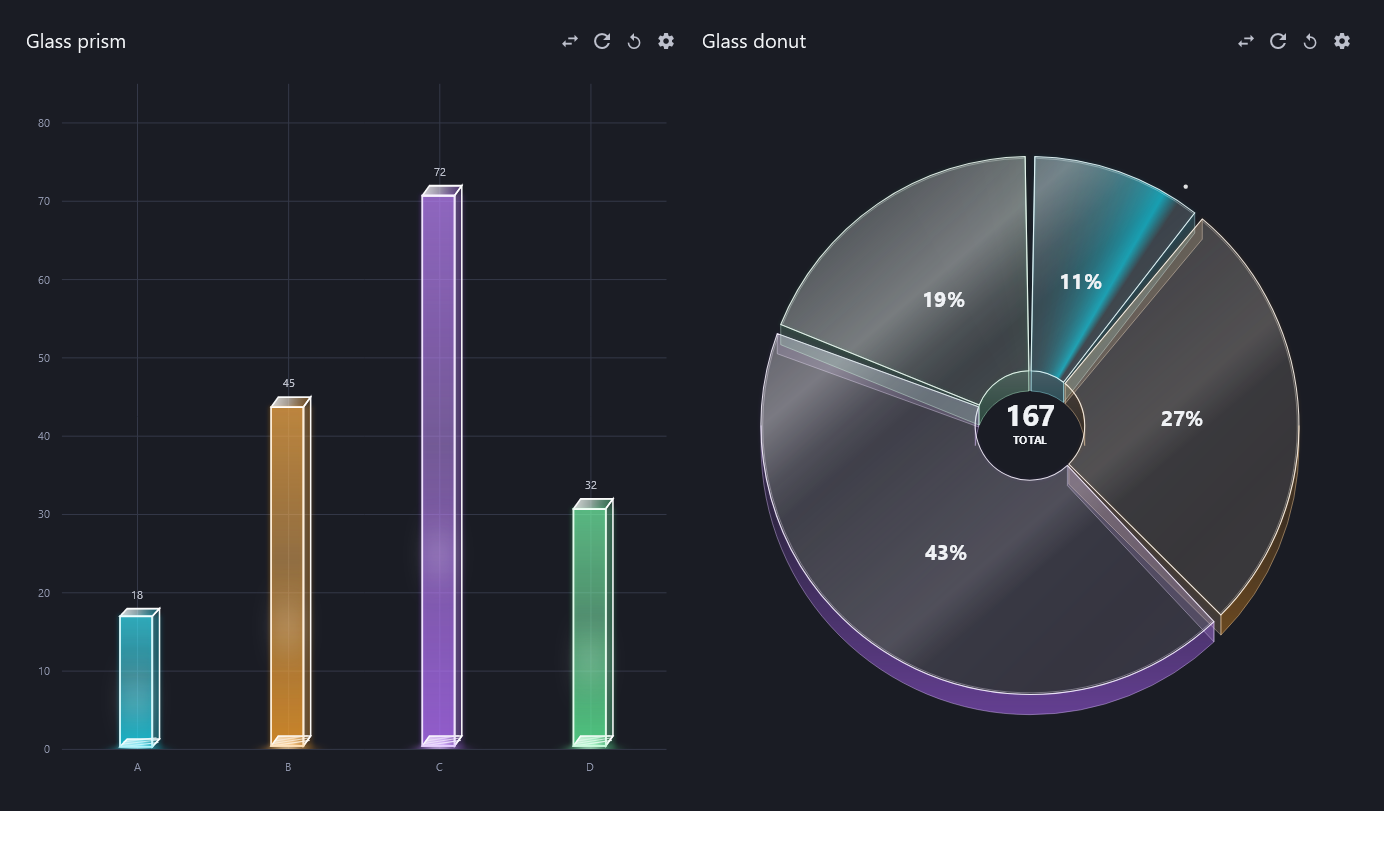
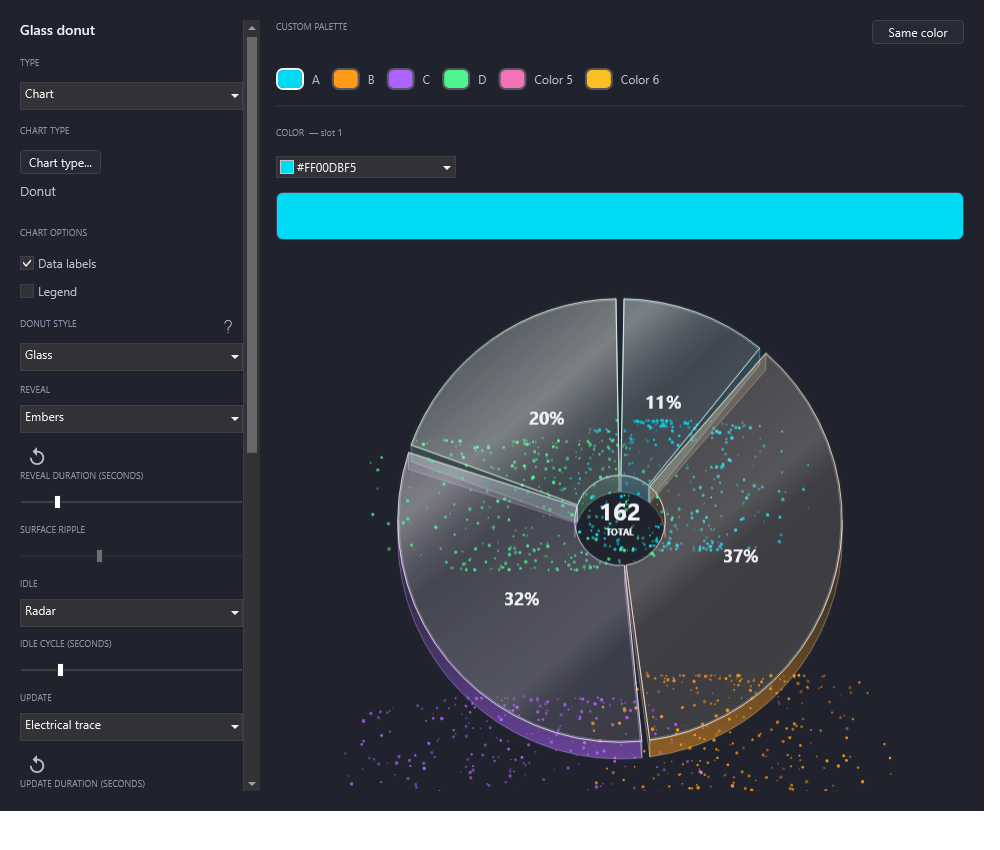
Decorative brightness, particles, scan position and liquid levels are not measurements or monitoring status. Numeric values, percentages, container heights and hover values remain based on the actual loaded rows. Updates change geometry only because the underlying values changed, not because an effect is halfway through playing. Existing standalone Particle, Arc Sweep, Radar and Spark Bloom styles remain available for compatibility; the new lifecycle effects do not add more material themes.
The Skia dashboard's Donut chart offers Standard, Particle, Glass, Arc Sweep, Spark Bloom and Radar styles. All use the same category values and palette. Particle draws luminous dots; Glass uses transparent tinted sectors and beveled rims; Arc Sweep draws moving luminous lines that fill behind themselves; Spark Bloom combines curved petals with particles. Radar carries one scan head around the outside and lights a narrow strip as it passes. These effects are decoration, not records, progress indicators or units. Read the percentages, source totals and hover tooltips rather than counting dots, petals or trails, or judging the brightest area.
Choose the Style
Open the chart's settings, choose Donut, then select Particle under Donut style. Standard returns to the ordinary donut. This does not change the query, source data or category colors. These settings are available for Skia donuts, not native DevExpress charts or ordinary pies.
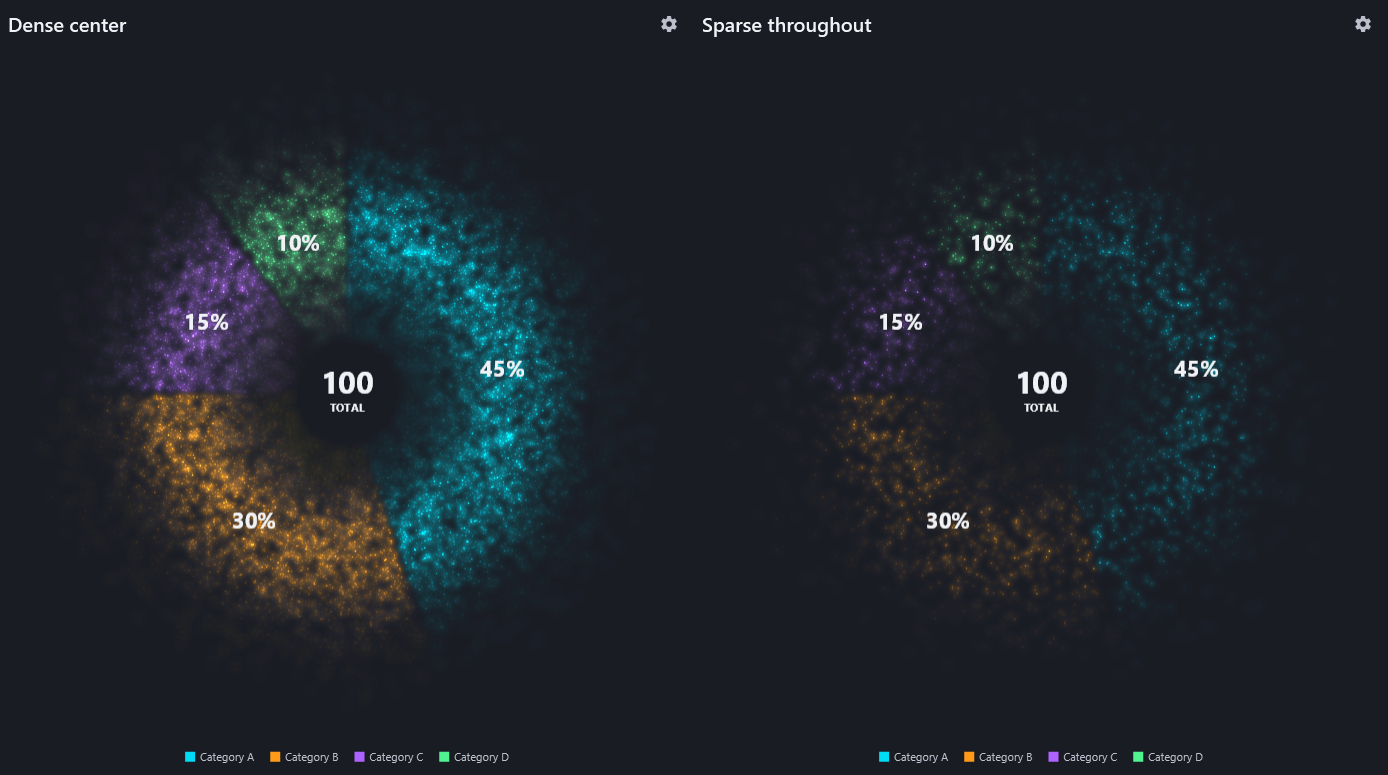
There is one Particle style. Dense and Sparse are presets for its density property, not separate chart types. Switching presets keeps your hole size, fade, glow, colors and animation choices. Moving Density away from a preset shows Custom.
Properties
| Property | What It Changes |
|---|---|
| Density | Number of visible particles across the whole donut. Dense uses 1.00; Sparse uses 0.22. Increasing density does not make a category's source value larger. |
| Ink spread / Ink softness | Ink bleed only, on bars and donuts in any lifecycle slot. Spread (0-2) controls irregular fingers at the advancing edge; zero makes smooth blooms. Softness (0-1) feathers that edge from crisp to diffuse. Animation speed and lifecycle duration control how quickly it spreads. The category palette supplies the ink color, and Motion brightness controls its light. |
| Hole size | Radius of the center hole relative to the outside footprint. Lower values close the ring inward, making the donut thicker without increasing its outer size. The initial value is 0.18. |
| Fade | How quickly particle light fades away from the middle of the ring toward both edges. Higher values fade faster; zero disables this brightness falloff. This is separate from hole size and density. |
| Fade direction | Center preserves the original dense-middle look and fades toward both edges. Inward puts the bright, dense region near the outer rim and fades toward the center hole, producing a halo. Outward starts near the inner rim and fades toward the outside. Reversing direction does not change category percentages or the hole size. |
| Glow | Halo around each particle. Zero removes the halo but leaves the dots. High glow can blend adjacent dots into a brighter cloud. |
| Particle / marker size | Diameter of individual dots or the moving head on Arc Sweep and Radar. This does not change ring thickness, category shares or source values. Beam / line width controls the lines separately. |
| Animate effects | Enables particle shimmer, moving sweep markers or the optional Glass liquid entrance. Disabling it gives a still chart, with the liquid entrance shown complete. Glass with Reveal None never starts an animation clock. |
| Animation speed | Rate of shimmer or sweep motion from 0.1 to 3 times normal. At 1, Radar makes one full orbit in about ten seconds. Higher values change the effect faster, not data refresh frequency. |
| Sparkle intensity | Amount of particle brightness variation. Zero makes Particle and Spark Bloom still even when animation is enabled. Arc Sweep and Radar motion use Animation speed instead. |
| Brightness | Arc Sweep and Radar only: overall artwork brightness from 0 (hidden) to 1 (full). Labels and hover values remain unchanged and readable. |
| Fill brightness | Brightness of the area behind the sweep, independent of the marker and lines. Zero removes the illuminated fill without removing the marker. Available when Fill behind sweep is checked. |
| Beam / line width | Width multiplier from 0.4 to 3 for Arc Sweep lines or the Radar beam. Marker size remains independently adjustable. |
| Trail length | Multiplier from 0.1 to 2 for Arc Sweep line tails or Radar's outer marker trail. Radar's filled-area fade is controlled separately by Afterglow. |
| Fill behind sweep | Adds a tinted fill behind the advancing Arc Sweep lines. In Radar, a narrow radial strip lights as the scan head crosses it, leaving a fading trail. The rest of the category does not light all at once. Clear it to keep moving lines and outlines without the filled sections. |
| Afterglow | Radar only: controls how gradually each scanned strip loses illumination behind the moving beam. Higher values retain a longer trail; Animation speed also affects the time between passes. |
| Reveal | Available on Glass donuts and plain GlassPrism / GlassCylinder bars. Choose any effect from the shared lifecycle catalog for a one-shot entrance, or None to start directly in Idle. |
| Reveal duration (seconds) | Length of the entrance, 0.5 to 10 seconds at normal Animation speed. Default is 3 seconds. It hands off to Idle rather than looping itself. |
| Idle / Idle cycle (seconds) | Any effect from the same catalog, repeated every 1 to 30 seconds at normal speed. None leaves the chart still between updates. |
| Update / Update duration (seconds) | Any effect from the same catalog, played once over 0.3 to 10 seconds on changed categories before Idle resumes. None updates the chart without an update effect. |
| Surface ripple | Liquid surface movement from 0 (level) to 1 (largest ripple). Movement settles as the entrance finishes. |
| Liquid slosh | Liquid Fill and Particle Rain, in any lifecycle slot. Zero preserves the original ripple-only fill. Above zero, the pool rocks from the beginning as it rises during the first 62% of the slot, then overshoots and settles through diminishing waves during the final 38%. Higher values increase wave strength. It fits the selected slot duration and finishes completely still. |
| Scanner color | Cylon scan only. Choose the light color without changing the source/category palette. The initial red is decorative, not a warning or health status. Motion brightness controls its intensity; Line / beam width controls its footprint; Trail length controls its fading history. The selected slot duration and Animation speed control the complete out-and-back period. |
| Scanner direction | Choose Left to right, Right to left, Top to bottom, or Bottom to top. This chooses the first sweep and axis; the eye eases back to the same starting edge afterward. The fill history and beam rotate/reverse with it. Existing charts default to Left to right. |
| Dot size | Scanner eye size multiplier from 0.25 to 4. It changes the bright eye and its glow, not beam width, trail length, afterglow or source values. Existing charts use 1. |
| Fill behind scanner | Cylon scan only. Off preserves the narrow eye and beam. On progressively reveals the original category colors as the scanner crosses each strip. This fill has a separate fading history from the red eye's trail; it never colors unvisited areas on the first pass. |
| Scanner afterglow | How long the revealed category colors remain: 0 leaves no retained fill; intermediate values fade after each crossing; 1 retains every visited strip until the effect restarts. After a complete outbound sweep at 1, the whole shape stays colored through subsequent reversals and cycles. |
| Fill brightness (scanner) | Intensity of the retained category colors, independent of the scanner eye. At 0 the eye remains but no fill is visible. Enabled only when Fill behind scanner is checked. |
| Code color / Code density / Character size | Matrix rain only, on both bars and donuts. Code color controls characters outside the chart; inside, the original category palette is used. Code density (0.05-1.5) changes the number of falling columns: lower is sparse, higher is denser. The default rain is denser to make the chart silhouette readable. Character size controls glyph size; inside characters are additionally bolder/larger to reveal the shape. Rendering budgets bound very dense settings. Trail length controls the number of trailing characters. Both shapes support the same Reveal, Idle and Update animations; Idle rains continuously without filling in. Motion brightness, Animation speed and the selected lifecycle duration control illumination and playback. The source values, category palette and numeric labels are unchanged. |
| Spill over | Liquid Fill and Particle Rain, from 0 (off) to 1 (strongest). Small jets and droplets escape where a sloshing crest overtops the glass lip, then disappear. Requires Liquid slosh above zero. Spill is decorative, may be clipped at the chart's outside edge, and never changes values, capacity, category percentages, axes or hit targets. Existing charts default to spill off. |
| Replay entrance | Restarts the liquid entrance using the already loaded chart values. Does not rerun SQL or refresh the source rows. |
| Custom palette | Existing per-category color swatches. Color changes do not alter category values. |
| Data labels / Legend | Existing switches for percentage labels and category names. Small slices may omit a percentage to limit label overlap; hover still identifies the category and its value. |
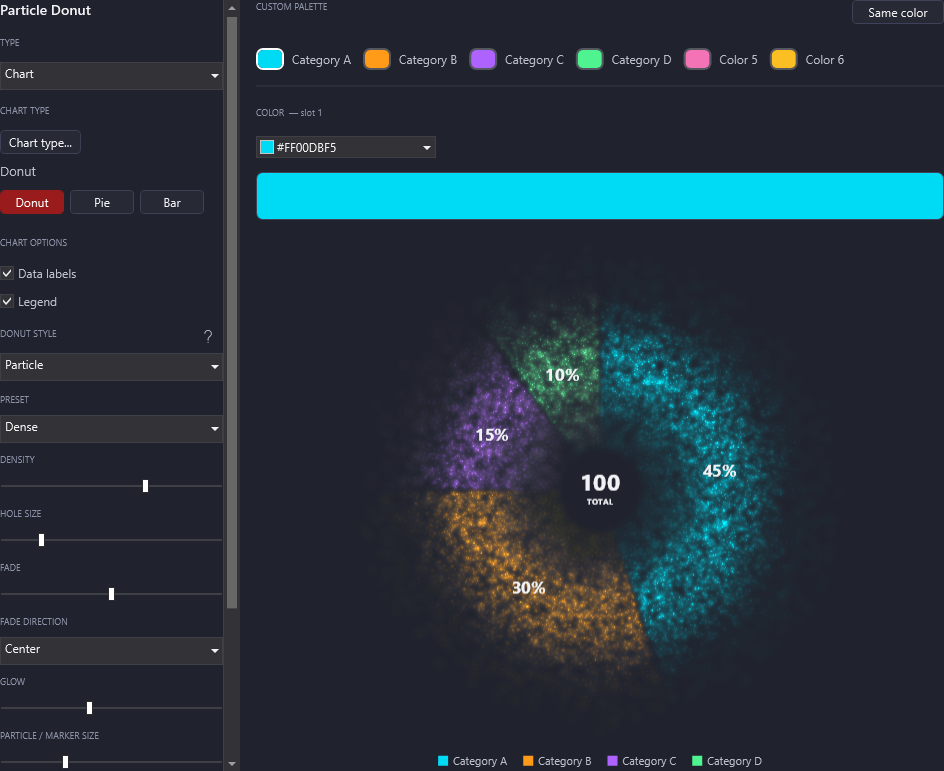
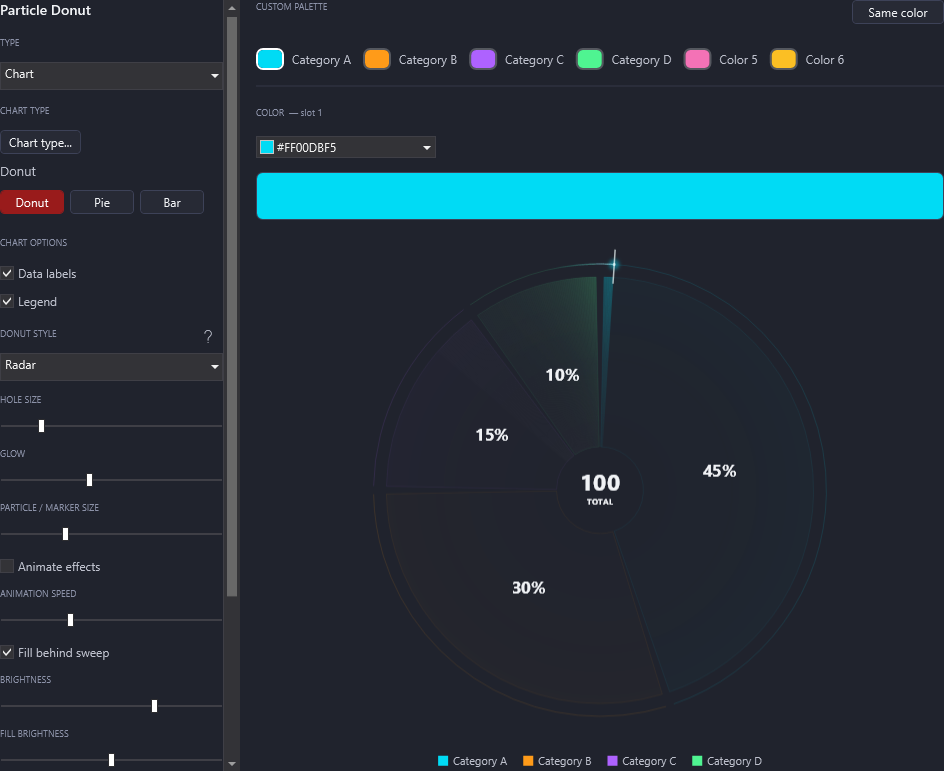
Controls that do not affect a style are hidden or disabled. Glass uses hole size, glow, palette, labels and legend, with optional Liquid fill reveal controls; it does not use particle density or fade. Arc Sweep and Radar use hole size, glow, marker size, animation speed and the sweep controls, but not particle density or fade. Spark Bloom supports the particle controls and clips its dots to the petal silhouettes. Selection emphasizes a glass sector; it does not shatter it or remove any data.
Glass and Liquid Entrance
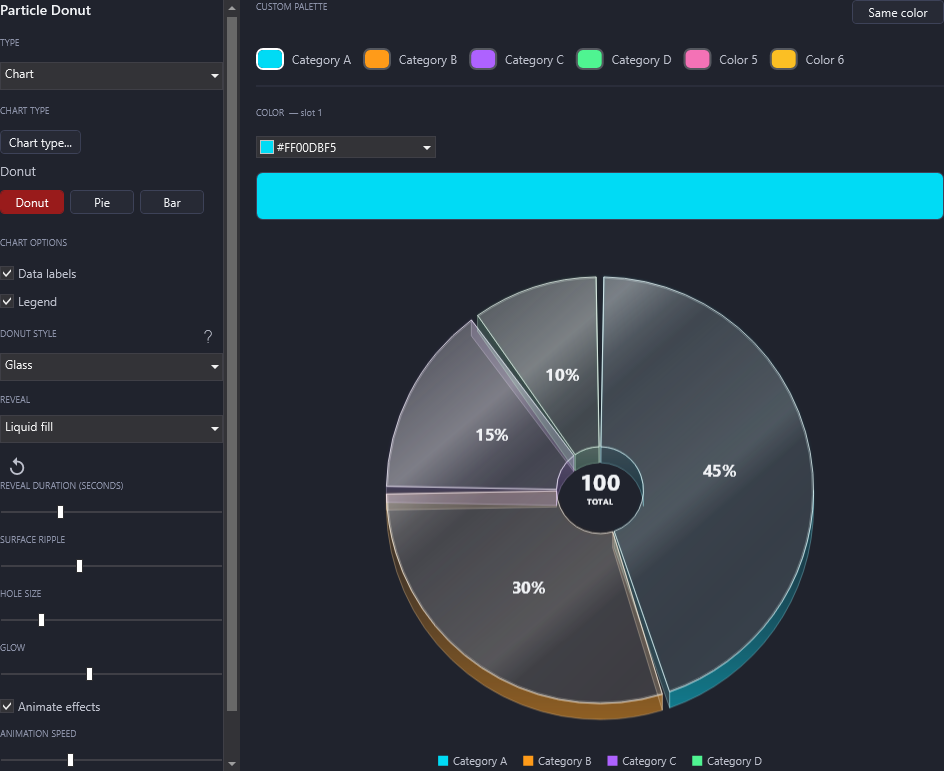
The Glass material uses pale translucent faces, distinct edge thickness, white bevels and broad reflections, following the existing glass prism rather than a flat dark tinted wedge. Select Glass, then choose Liquid fill under Reveal. Use the replay icon to compare duration and ripple choices in the live preview. Changing appearance or rebuilding the widget starts the entrance again. Existing saved charts default to Reveal None.
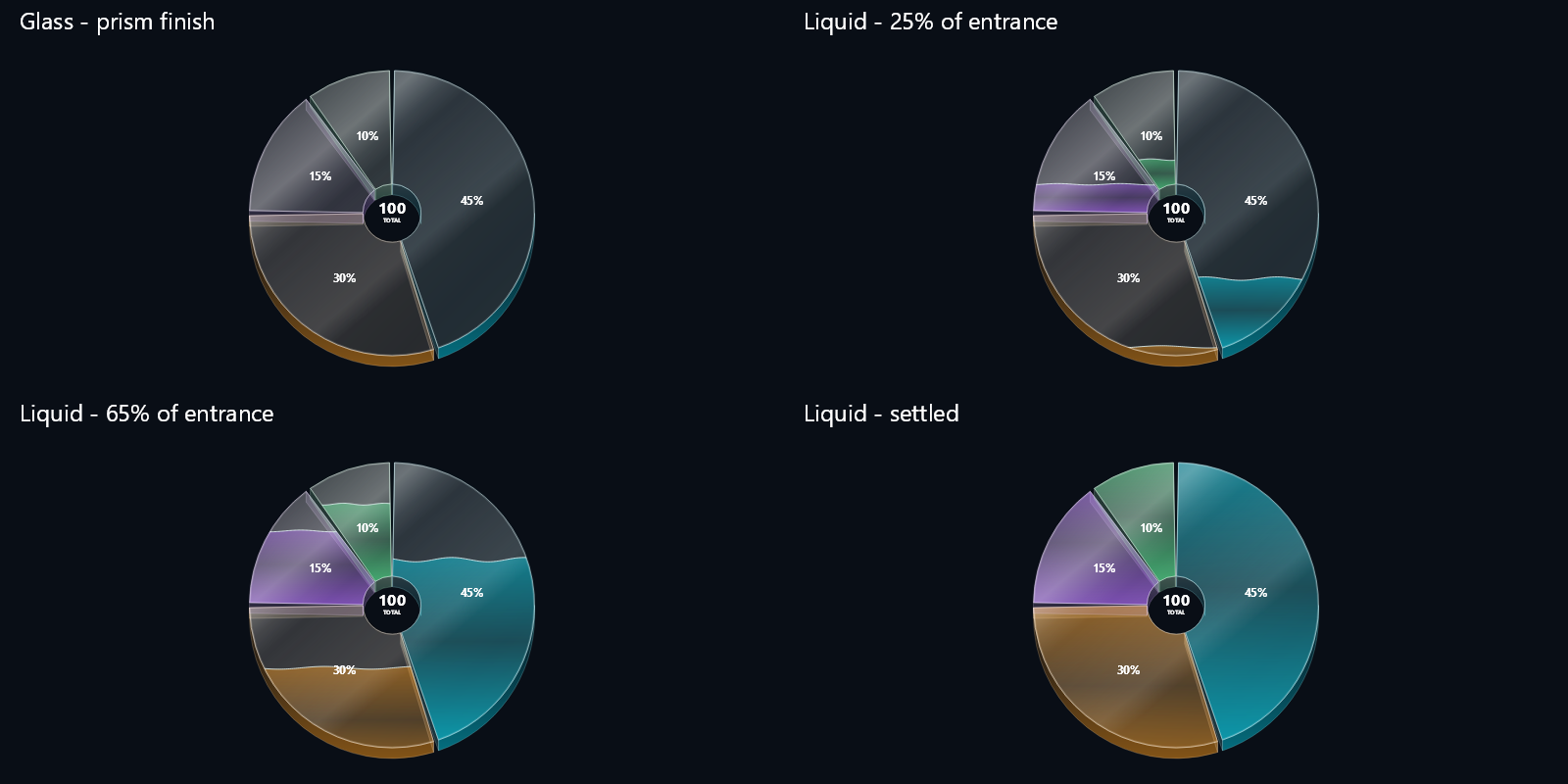
The 25% and 65% captions in this illustration describe elapsed entrance time, not database capacity, source percentages or collection progress. Each section fills within its own container bounds; the section's angle and numeric label always retain its true source share. The settled fill is a visual treatment, not an additional measure. Turning Animate effects off shows the finished liquid chart immediately. A finished entrance retires its animation clock; a still Glass chart with Reveal None never starts one.
Liquid Glass Bars
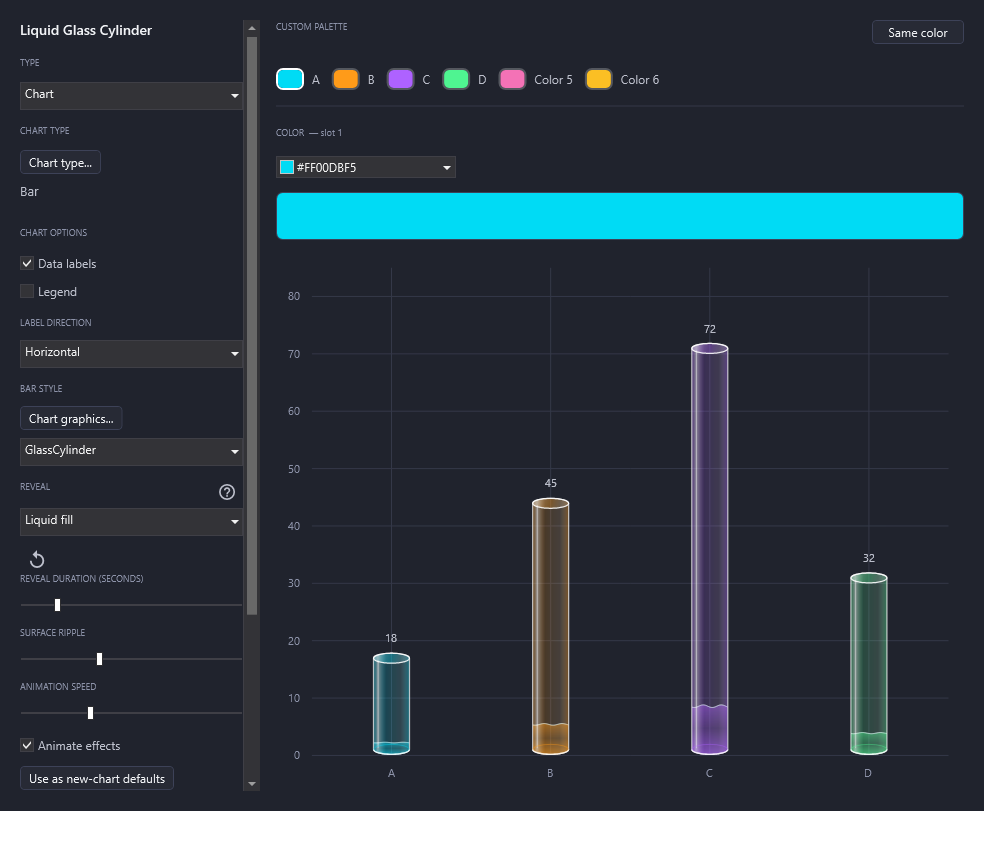
On the Skia dashboard, choose a Bar, Bar3D or StackedBar chart and the GlassPrism or GlassCylinder artwork. Choose Liquid fill in Reveal. Duration, surface ripple, speed, Animate effects and Replay work just as they do for Glass donuts, with a live bar-chart preview in settings. The ring-filled enclosure styles and native DevExpress charts do not use this entrance yet.
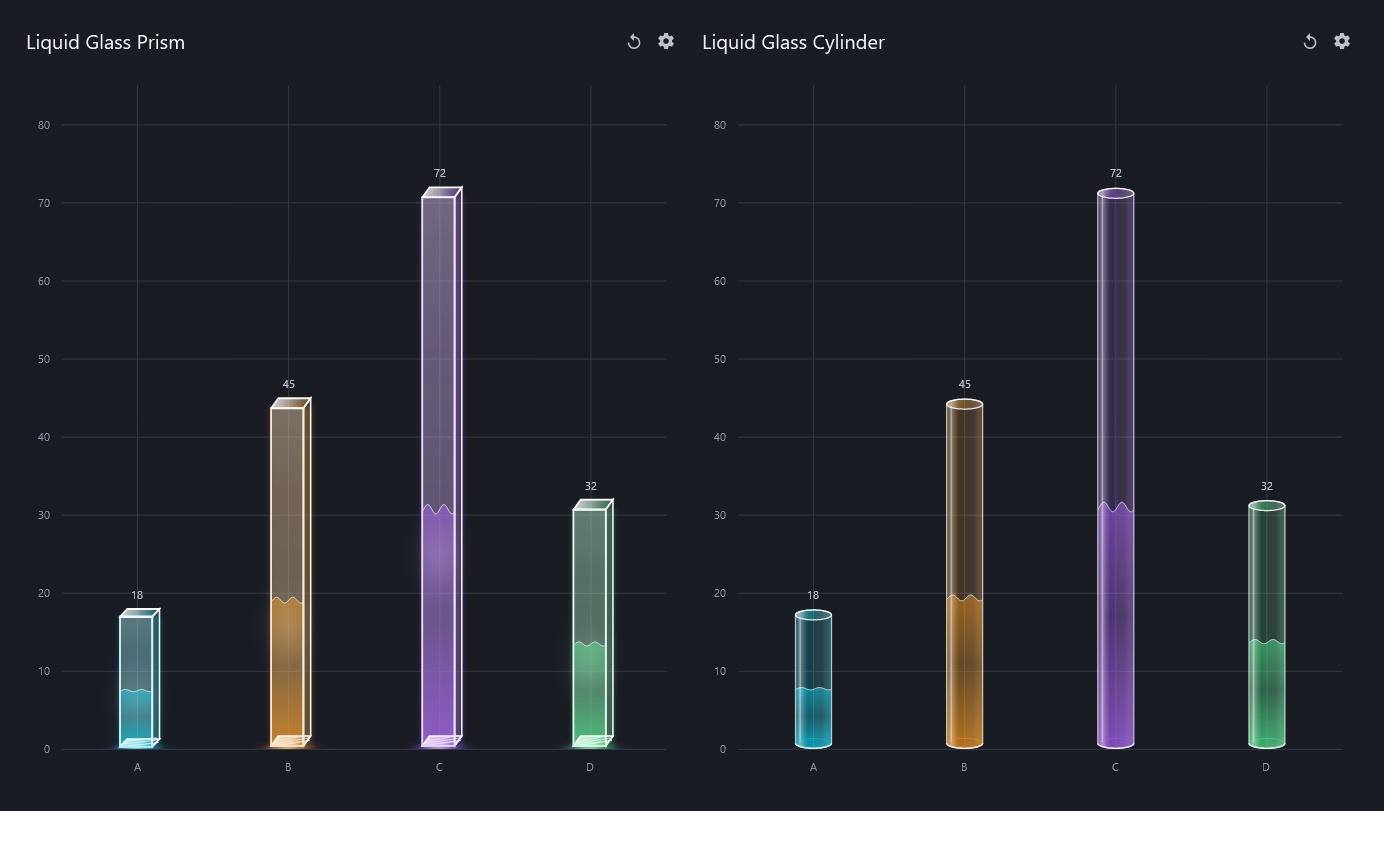
The glass containers retain their final heights throughout the entrance. Axis ranges, data labels, tooltips and stacked segment values remain based on the loaded data, not on the animated liquid level. A half-filled bar during the entrance does not mean half the source value. Positive bars fill upward from their baseline; negative bars fill downward from it. A stacked segment fills inside its own bounds.
One transient clock drives the chart, rather than one clock per bar. Hiding a widget pauses its entrance; unloading it retires the clock; a completed entrance stops. Replay does not requery SQL or save chart preferences. Disabling Animate effects shows the completed liquid bars immediately. Choosing Reveal None restores the ordinary glass artwork and existing entrance controls. Saved layouts and new-chart defaults retain the same reveal options as donuts.
Arc Sweep fills forward within each category and repeats its sweep. Radar uses a continuous clockwise orbit; illumination follows the beam a narrow strip at a time, while the trail fades according to Afterglow. Areas ahead of the beam stay dim even within the same category. A bright area is not necessarily the largest or healthiest category, and scan position is not collection progress. Animation changes neither the data nor refresh timing.
Save and Read the Chart
Settings changes update the widget immediately and save through its existing dashboard layout. Use as new-chart defaults saves the graphics choices for charts created later; it does not overwrite existing saved widgets. The choices also travel through the shared graphics settings used by dashboard configuration. The default for an older saved donut remains Standard unless you explicitly change it.
Hover the ring for the category name, original value and share of the total. Click a category to emphasize it; click it again or click the center to clear emphasis. This emphasis is local to the chart and does not filter other widgets. Nonpositive and nonfinite values do not form particle slices. If there are no positive values, the chart displays No data.
Animation pauses when the chart is hidden, removed or its window is minimized. It does not poll SQL. Data refreshes replace the category values through the existing dashboard refresh workflow.
For accurate comparisons, keep colors stable and compare the labeled shares. A larger glow, denser dots or a smaller center hole can make a chart look more prominent without representing any growth in the underlying data.
The style currently applies to the Skia dashboard. DevExpress supports custom pie models, but its native export and filtering paths require separate integration and testing; selecting a DevExpress donut does not automatically install this particle renderer.
Documentation revision: 9D3885C5899D6584