
Query Pilot
Help ID: shell.panel.query-runner
The Query Pilot runs ad hoc or saved T-SQL across one or more target servers. It supports per-tab targets, per-tab database selection, per-tab refresh schedules, multi-threaded execution, selection-only runs, syntax checking, SQL editor refactors, and result messages.
For a compact checklist of the full surface area, see Query Pilot feature inventory.
Minion Agent
Choose Create Minion Agent job from a query tab's right-click menu to use the whole tab, or from the editor's right-click menu to use the selected SQL. The Minion Agent Jobs tab uses the installed Agent console's saved fleets and shared sign-in dialog. Choose a registered Agent target, database, and execution identity before creating a new inactive job or adding a step to an existing job. Creating the job does not run or schedule it, and Pilot's comment-based execution gates are not converted into Agent gates.
Layout
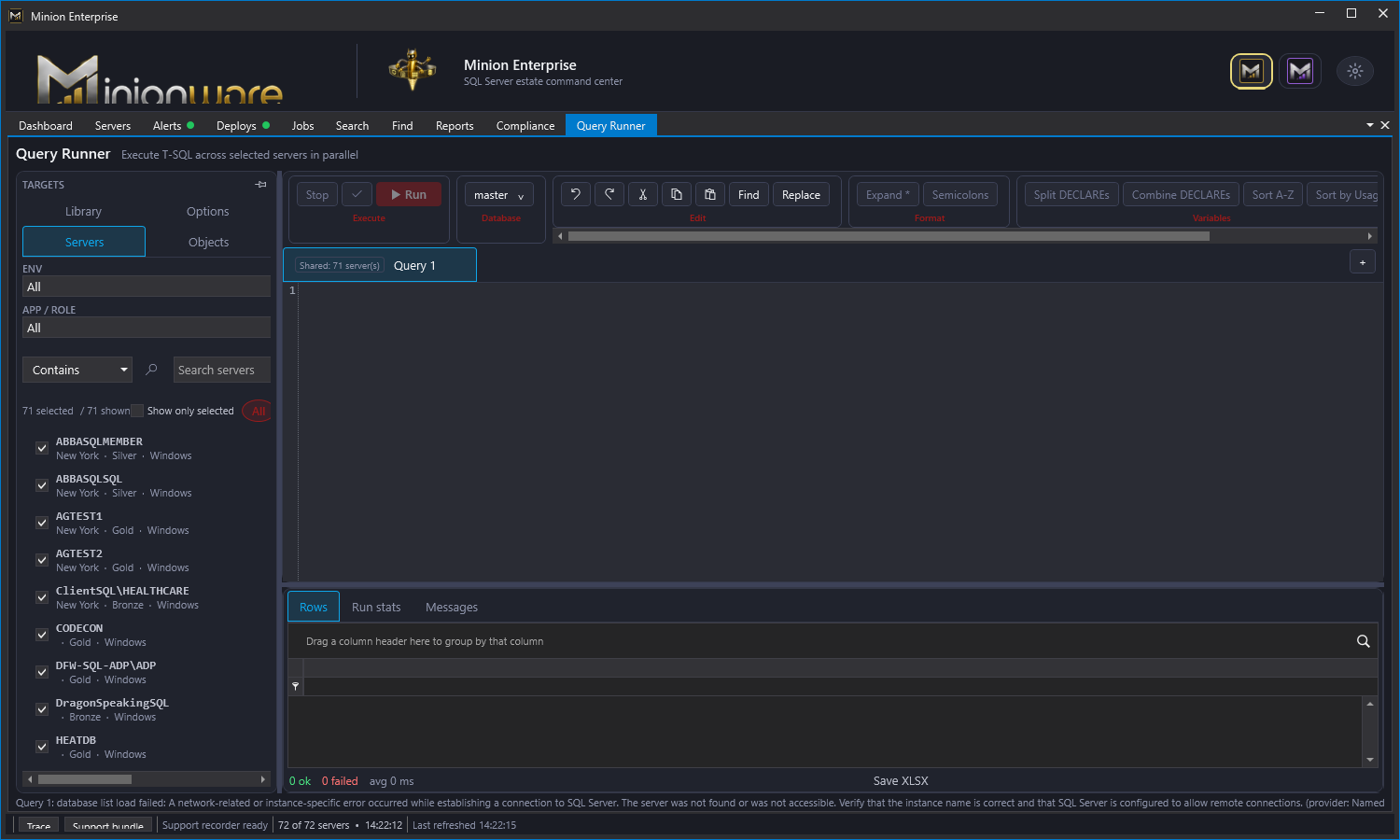
- Targets panel: left dock panel with Servers, Objects, Library, Exec Policy, and Options.
- Execute group: stable top-left run surface with Stop, syntax check, and Run.
- Database picker: per-tab database selector with search, Select shown, Clear shown, Refresh database list, and Database first.
- Editor ribbon: edit, format, variable, and layout commands for the active editor tab.
- Editor tabs: each tab owns its SQL text, selected targets, selected databases, result set, messages, and refresh schedule.
- Results pane: bottom pane with Rows, Run stats, Messages, Diagram, Annotations, and Plan when the active script exposes those views. Toggle it with
Ctrl+R; completed runs show it again.
Running SQL
Run executes the active tab. If SQL is selected, the runner executes the selection instead of the whole script. Smart run can prepend the needed variable declarations from earlier in the script so a selected statement can run without manually copying setup code.
The runner fans out target work using the MT threads limit. When multiple databases are selected, each selected target/database pair becomes its own unit of work. A long run in one tab does not block another tab from running its own query.
The run button is disabled until the active tab contains runnable SQL.
Editor Tabs
Use the plus button beside the tab row to create a tab. Right-click a tab name to:
- Rename the tab.
- Include or exclude the tab from recovery autosave.
- Enable or configure that tab's auto refresh interval.
- Pin the currently selected servers to the tab.
- Return the tab to the shared target picker.
- Load the tab's pinned servers back into the picker.
- Close this tab, close other tabs, or close all tabs.
Tab status indicators show the latest run state:
- Orange dot: running.
- Green dot: succeeded.
- Red dot: failed.
- Yellow timer: auto refresh is enabled for that tab.
- Target chip:
Sharedfollows the current picker; pinned tabs show their own target scope.
Server Targets
The Servers target tab selects where a query runs. It defaults to the servers selected in the Fleet grid when available.
Use ENV, SLA, and APP / ROLE to narrow the target list. Target search supports Contains, Starts with, Equals, Like, and Regex. Search checks server name, environment, application/role, service level, and resolved connection user.
Each row shows server name plus environment, SLA, and connection user. All selects every visible target. None clears the visible target selection. Show only selected filters the list down to the current selection.
Target Modes
Query Pilot currently has two target source modes:
- Repo: loads managed SQL Server targets and connection overrides from the Minion repository.
- Standalone: loads local server profiles from JSON for ad hoc, non-repo targets.
Standalone target storage is backed by QueryRunnerTargets.json. In the Servers tab, choose Standalone, then Add / manage servers to add, edit, tag, activate, deactivate, or delete local profiles. Saving and closing the manager reloads the standalone list. Tags are searchable in the target picker along with server name, environment, SLA, app/role, and connection user.
SQL login passwords are encrypted with the same Encryption.Secrets path used by repository-backed Query Pilot credentials. Repo-only features, such as Database first and future repo audit logging, still depend on repository data.
Related: Connection overrides, Standalone targets.
Database Picker
The database picker belongs to the active tab. Switching tabs restores that tab's database selection. The picker supports multi-select, search, Select shown, Clear shown, and Refresh database list.
The search mode supports Contains, Starts with, Equals, Like, and Regex. This is useful when a server has hundreds or thousands of databases and the query should run only against a matching subset.
If no database is selected and Auto-cursor databases is off, the query runs in master.
Database First
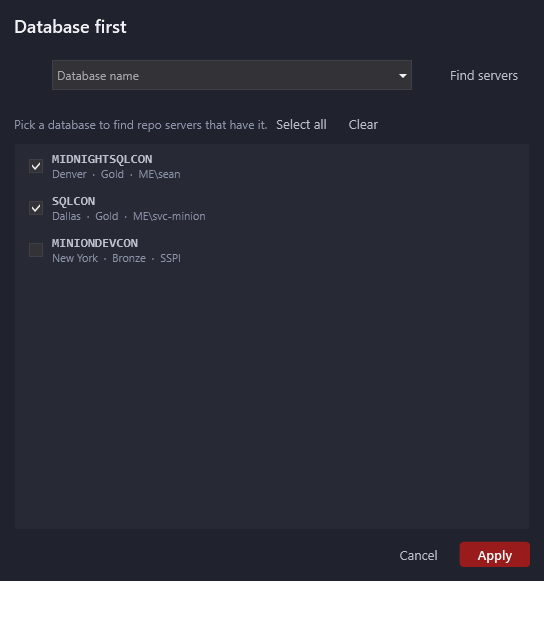
Database first is a repo-mode workflow. Enter a database name, find repository servers that currently have that database, select the servers to use, and apply the result.
Apply updates the shared target picker, turns on Show only selected, pins those servers to the active query tab, and selects the chosen database for that tab. This keeps execution on the same target-selection path as normal Query Pilot runs.
Object Browser
The Objects target tab shows metadata for the active query tab. The tab can run against many servers, but the object browser uses one selected Server as its metadata source so the tree stays readable and deterministic.
The tree is grouped as server, then top-level Databases and Security / Logins folders. Under Databases, tables, views, stored procedures, functions, and synonyms live under the schema that owns them. Tables expand to show counted folders for columns, keys, indexes, foreign keys, and triggers. Procedures and functions expand to show parameters. Child rows load lazily when an object is expanded so large metadata trees do not block the first tree load. Count badges appear after the lightweight object shell is enriched so unknown counts do not display as zero. Hover text shows fully qualified names, object type, create/modify timestamps, and child metadata where SQL Server exposes them.
Server logins appear under Security / Logins, not under individual databases. The folder can show a flat list or grouped folders for SQL logins, Windows users, Windows groups, Azure/external logins, and built-in/system logins. Single logins show type-specific icons plus badges for states such as disabled, locked, sysadmin, securityadmin, and estate-wide SID drift. SID drift checks load lazily from repository login inventory and flag login names that have different SIDs on different servers.
Pilot's login tree, login search results, and system login grids use the shared LoginBadgeService decorator. Single server roles use the corresponding role icon; multiple roles collapse into one badge whose tooltip lists all memberships, including custom roles. Repository-mode login search results also show the shared SID warning with the affected-server summary. Standalone search uses indexed server-role metadata without requiring repository access. Database-user role badges remain database-scoped.
Right-click a login or login folder and choose Clone/script logins to open a dedicated clone preview. The object-browser server is the source collection. The preview window has a left-side login picker and target picker with select-all controls. Query Pilot reads Clone.LoginScripts, shows Stmt rows on the create tab, shows NegativeStmt rows on the drop tab, and shows the standard <SQL> footer affordance for the query used to build the preview. Options above the script tabs are grouped by purpose: content options choose login/server statements and/or database permissions, and script options control password hashes, SIDs, and IF EXISTS checks. The Scheduling tab queues the selected create/drop script into Deploy.Code for the selected target servers with begin/end, retry, and alert options.
Tables and routines can show compact semantic badges beside their names. Badge visibility, color, and shape are controlled from Settings > Tree. Defaults emphasize heap/clustered status, clustered GUID warnings, primary keys, columns, indexes, and parameters; optional badges include foreign keys, references, triggers, temporal, memory-optimized, and partitioned signals.
Object nodes support editor insertion from both the context menu and drag/drop. Right-click a table, view, stored procedure, or function to insert the object name or a starter statement. Procedures insert EXEC calls with named parameter assignments and declare parameter variables automatically, with output parameters marked OUTPUT in the call. Scalar functions insert declared arguments plus SELECT [schema].[function](...), table-valued functions insert declared arguments plus SELECT * FROM [schema].[function](...), and tables/views insert SELECT * FROM [schema].[object]. Tables also support SELECT with all columns. Drag an object into the editor to insert the name, Shift+drag to insert SELECT * or a routine call, or Ctrl+Shift+drag a table to insert all columns. Drag a single column detail row to insert the quoted column name, or drag the Columns folder to insert every visible column as a comma-separated list.
Table context menus also generate DML starters for INSERT VALUES, multi-row INSERT VALUES, INSERT SELECT, UPDATE, and DELETE. Query Pilot declares generated variables for single-row, update, and delete templates; multi-row insert uses literal placeholders instead of variables. Templates skip computed and identity columns for insert/update, and use primary-key columns in WHERE clauses when key metadata is loaded. If a table has no visible key, update/delete templates use a guarded TODO predicate instead of producing an unsafe unqualified statement.
Object tags show as compact #n affordances beside tagged database objects. Right-click an object and choose Add tag to add either a system-wide repository tag or a local-only workstation tag. System-wide tags live in the repository database under the Tag schema so the team can share object annotations. Local-only tags live in QueryRunnerObjectTags.json and are useful for private investigation notes. Tag hover text shows the scope, name, and note.
Open Settings > Tree > Manage tags to maintain system-wide object tags. The manager shows the tag preview, stable name, shape, active assignment count, color, description, and delete/save actions. The Add Object Tag dialog also links to the same manager so existing system tags can be cleaned up while applying a tag.
Use Refresh to reload database and object metadata for the selected server. Switching query tabs refreshes the available metadata-source server list from that tab's effective target scope.
Double-click a table to open a table editor as the main query tab content. The table editor uses a DevExpress grid with grouping, filtering, sorting, editable cells, export, and a column chooser. It fills the tab workspace, replaces the SQL editor, hides the footer status line, and does not use the lower Rows, Run stats, or Messages result tabs. In this first pass, edits are local to the grid until write-back rules are added.
Double-click a view, procedure, function, or other code object to open its SQL definition in a new Query Pilot editor tab. If SQL Server does not expose the definition, Query Pilot opens a short note explaining that the definition may be encrypted or hidden by permissions.
Automatic Run Schedules
Query tabs hide their refresh icon until automatic refresh is enabled. Right-click the tab name and check Auto refresh to enable its timer and reveal the shared refresh icon. Right-click that icon to open the same configuration popup used elsewhere. Enter the custom interval and select Seconds, Minutes, or Hours; preset buttons have been removed. Expand Run schedule for active weekdays/hours, maximum runtime, and a final cutoff, then Apply schedule. Unchecking Auto refresh, including from the icon's popup, hides the icon again. The menu only enables/disables; all configuration lives in the shared UC. Pilot's existing scheduler owns execution, so the icon does not start a second timer. The popup's help icon opens Refresh and run schedules, including checked/unchecked cancellation timelines and run/rest examples.
Script Diagrams
Query Pilot can render Mermaid diagrams embedded directly in SQL comments. The script stays valid T-SQL in SSMS, sqlcmd, and other tools because the diagram is stored in a block comment.
Use this shape:
/*
MINION DIAGRAM mermaid
Title: Load customer cache
flowchart TD
    A[Start] --> B[Load staging rows]
    B --> C{Rows found?}
    C -->|yes| D[Merge dbo.CustomerCache]
    C -->|no| E[Skip merge]
    D --> F[Return]
    E --> F
*/
When a script contains a Mermaid block, the results pane shows a Diagram tab with the rendered diagram and an expandable source view. This is useful for large stored procedures, deployment scripts, parallel regions, and anything where the control flow is easier to understand visually than by scanning hundreds of lines.
The first pass renders the first Mermaid block in the active tab. Future passes can generate or refresh diagrams from procedure text.
Script Annotations
Inline comment annotations let you tag variables, temp tables, statements, or object references without changing the SQL:
DECLARE @FakeID int = 42; -- Tags: debug | Comments: "Fake ID used for local repro.", "Remove before prod."
SELECT * FROM dbo.Servers; -- Tags: inventory, review | Info: "Wide result; expand only the needed columns."
Annotated lines can render tags and comment/info icons directly in the editor. The display is configurable in Query Pilot settings > Annotations, including marker placement, tag style, tag colors, and comment icon color. The results pane shows an Annotations tab with line number, tags, comments, info, risk, owner, review, ticket, and expiration values.
This gives scripts lightweight review notes, handoff notes, and safety reminders while keeping them runnable in ordinary SQL editors.
For column-heavy scripts, use bounded visual sections:
SELECT
-- SECTION Customer info | Color: Gold
    c.CustomerID,
    c.CustomerName,
-- END SECTION Customer info

-- SECTION Shipping info | Color: Teal
    s.Address1,
    s.City
-- END SECTION Shipping info
FROM dbo.Customers c
JOIN dbo.Shipping s ON s.CustomerID = c.CustomerID;
Use -- REGION ... and -- END REGION ... for larger script blocks. Query Pilot colors and folds these sections while leaving them as normal SQL comments for other tools.
Library
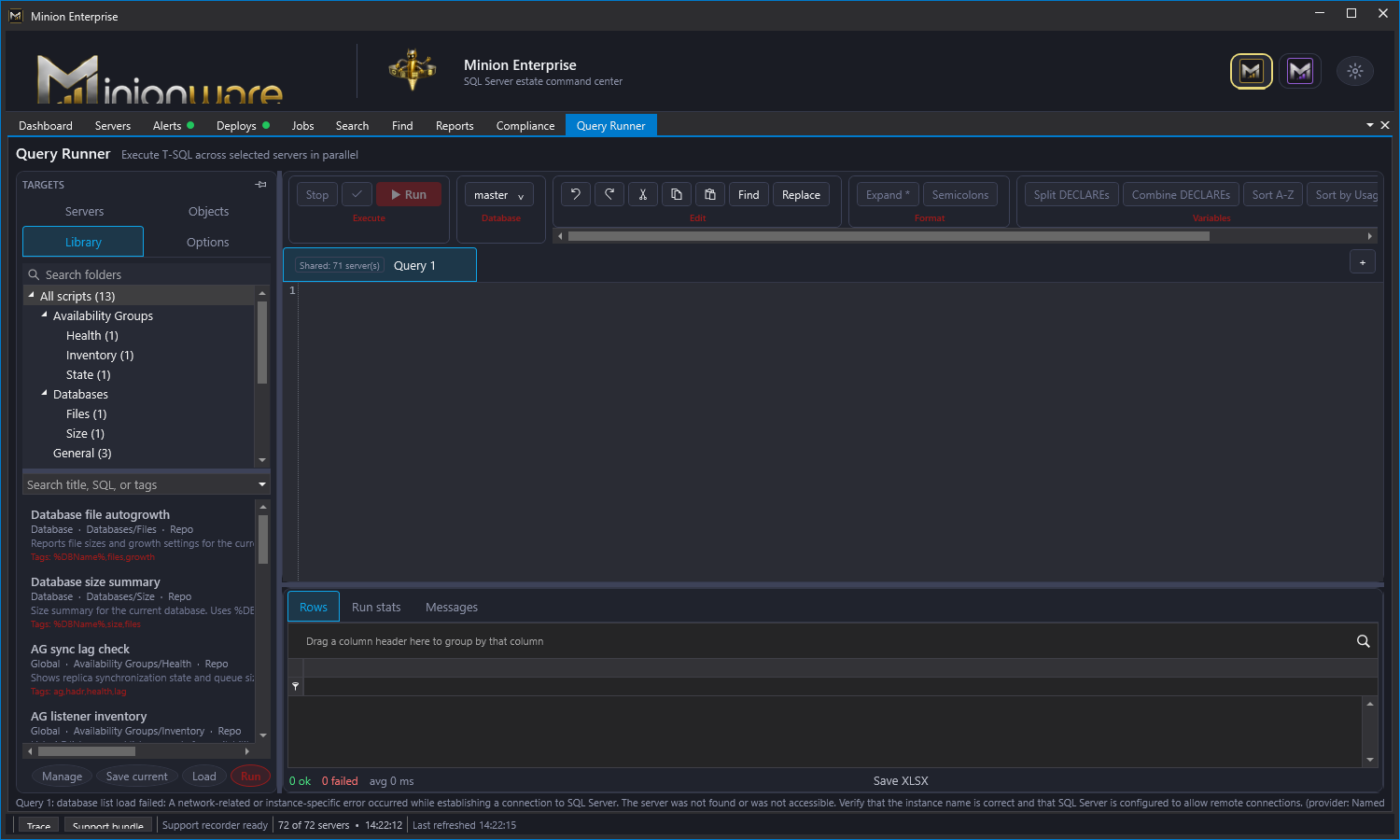
The Library target tab browses saved scripts without leaving Query Pilot. The tree is organized by source root first, then folders under that source. Repo is the Minion repository saved-query library. Local and UNC folder sources appear beside Repo as separate top-level roots so users can stack multiple script locations such as C:\Scripts, D:\SQL, or a team share.
- Double-click a script opens it in the active editor tab and links that tab back to the library item.
- Save current updates the linked library script. If the tab is not linked yet, Query Pilot asks for the script name and folder/source before saving.
- Manage opens the full Script Library manager.
- Add source registers a local or UNC folder source. Folder sources are persisted and reloaded on the next startup.
- Remove source appears on source-root context menus and removes that local or UNC source from the Query Pilot Library tree.
- Names, Tags, and SQL choose what the search box searches. Disable SQL text search when a large local source should be searched by metadata only.
- Autosave saves restorable query tabs. Continuous mode uses a short debounce after edits; interval mode saves every configured number of minutes. Use Save tabs now to write the recovery file immediately.
Saved scripts may include tokens such as %DBName%. The Query Pilot passes saved text through as written; token expansion is handled by the feature that executes or schedules the script. Local and UNC library scripts currently support .sql and .tsql files.
Local and UNC source definitions are stored in %APPDATA%\MidnightDBA\MinionEnterprise\QueryRunnerLibrarySources.json. The file stores source name, source type, folder path, tags, and enabled state. It does not store SQL credentials or decrypted secrets.
Options
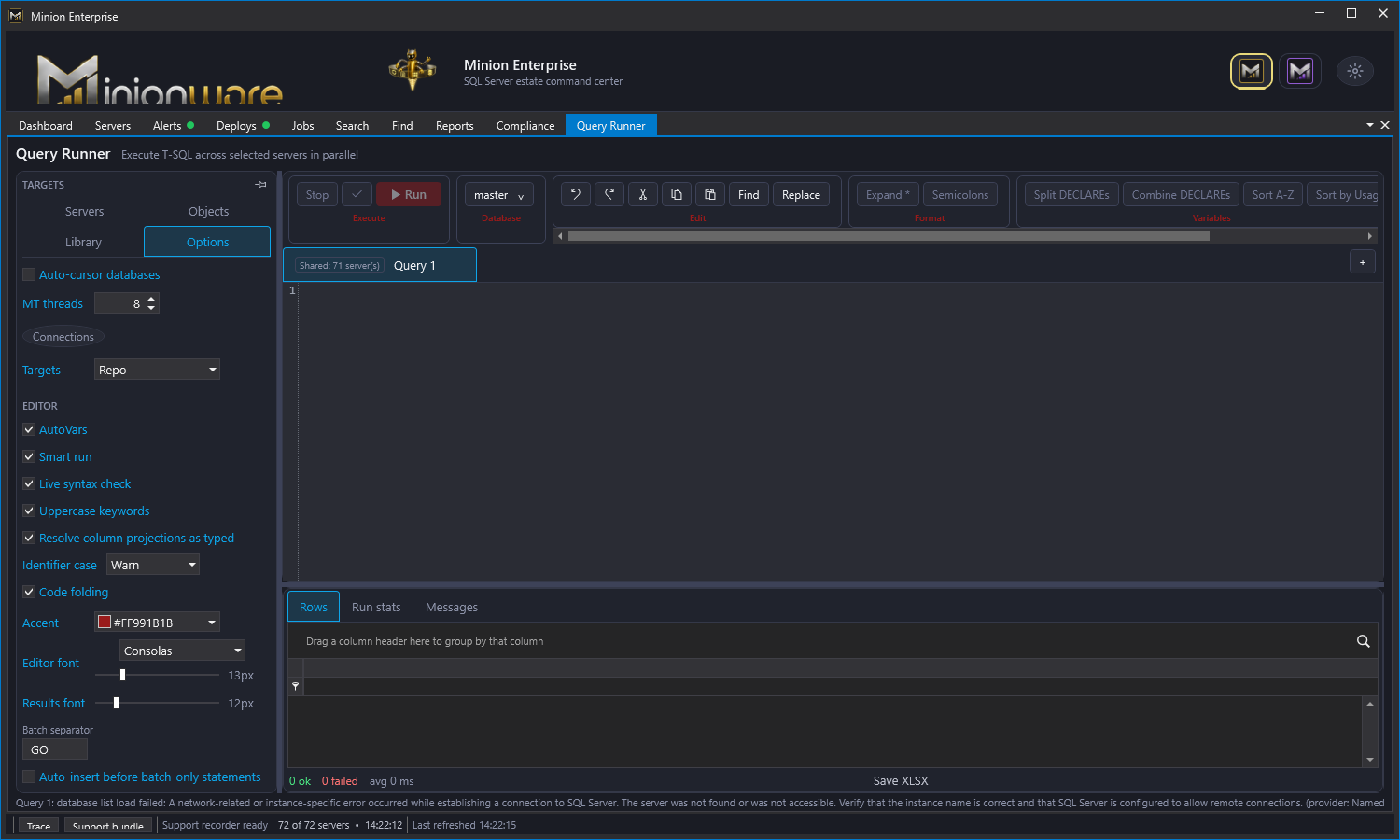
Options control execution behavior, target mode, editor behavior, color, fonts, and batch parsing.
- Auto-cursor databases runs the current query once per discovered database on each selected server.
- MT threads controls parallel fan-out.
- Connections opens Query Pilot connection overrides.
- The Servers tab source selector switches between Repo and Standalone targets. Add / manage servers opens the standalone JSON target manager when Standalone is selected.
- AutoVars creates missing
DECLAREstatements for variables used in a query. - Smart run includes needed variable setup when running only selected SQL.
- Live syntax check validates as you type and shows squiggles for syntax errors.
- Require INSERT column lists checks for bare
INSERT table VALUES (...)statements and obvious column/value or column/SELECT count mismatches. - Uppercase keywords normalizes recognized SQL keywords.
- Identifier case chooses
Warn,Block, orEnforce. Warn permits execution, Block prevents execution, and Enforce rewrites every mismatch as one undoable edit.EnforceCase: Warn|Block|Enforcein Minion Exec Policy overrides the editor default. - Code folding enables folding for regions and foldable SQL blocks.
- Accent sets the UI accent color for Query Pilot.
- Editor font and Results font control editor and results sizing.
- Batch separator controls the batch separator token, defaulting to
GO.
Related: Query Pilot tab autosave.
Exec Policy Settings
The Exec Policy target tab controls how scripts with /* MINION EXEC POLICY ... */ affect the active Query Pilot tab when RunMode: Auto and EnforceCase: Enforce are both present.
- Apply enforced scope as soon as it is read applies valid scope directives when a script is opened or edited, not only when Run is clicked.
- Select and pin query tab servers lets the
Serverdirective update the Query Pilot server picker and pin those targets to the active tab. - Turn on Show only selected filters the server list after scoped servers are applied.
- Select query tab databases lets the
Databasedirective update the active tab's database picker. - Object browser controls whether scoped servers move the Objects tab metadata source. It can change only when one server is declared, use the first declared server, or leave the browser unchanged.
- Appearance controls the policy section background, background opacity, pending command color, title color, directive color, and option/value color.
- New query stub can insert an editable default
/* MINION EXEC POLICY ... */block at the top of new query tabs.
EnforceCase: Block and EnforceCase: Enforce require Server and Database directives in Minion Exec Policy. Without both, Query Pilot marks the EnforceCase line as failed in the policy margin and disables Run because catalog-backed case validation would otherwise be ambiguous.
Syntax Checking
The check button validates the active tab using ScriptDom and the configured batch separator. Live syntax checking uses the same validation path while typing.
The checker validates each batch separately and warns when statements that must be alone in a batch are mixed with other statements. Syntax messages appear in the Messages tab and editor errors show red squiggles. Missing variable declarations show warning-level feedback.
Minion Exec Policy
Minion Exec Policy is a comment-based execution policy at the top of a script. Because it is a normal SQL block comment, the script still runs in SSMS, sqlcmd, and other editors; Query Pilot hides the raw comment behind a folded, highlighted MINION EXEC POLICY editor section and adds guardrails when it sees the comment.
/* MINION EXEC POLICY
RunMode: Auto
Server: SQL01, SQL02
Database: Minion
BlockIfDifferent: true
EnforceCase: Enforce
AllowedDays: Sat, Sun
AllowedTime: 22:00-05:00
BlockedDays: Mon-Fri
BlockedTime: 12:00-17:00
Timezone: Mountain Standard Time
*/
RunMode: Auto applies declared server and database scope only when EnforceCase: Enforce is active for the script. In that mode, the selected server and database are locked to the scoped values as soon as Query Pilot reads the comment. RunMode: Auto with EnforceCase: Block validates the current selected scope instead: it does not correct the picker, and Run is disabled when the selected server or database violates the scoped values. RunMode: Check also checks the current selected scope and can block execution when BlockIfDifferent is true. Time policies are always checked.
The editor marks each directive line with a pass, warning, or failure glyph in the policy margin as soon as the script is loaded or edited. Hover a glyph for its complete check details, including expected and actual values. A compact green, yellow, or red policy shield beside Check summarizes the overall state; its tooltip lists every directive result. IntelliSense-style pickers help insert run modes, days, time windows, and standard Windows time zone IDs.
Related: Minion Exec Policy help.
Editor Commands
The editor ribbon and right-click menu expose the common editing commands:
- Undo, redo, cut, copy, paste, and select all.
- Find with
Ctrl+F.
Object intelligence
Recognized table, view, procedure, and qualified function references display a virtual (N refs) label directly in the editor. The label is not inserted into the SQL text and is never sent to SQL Server. Counts are recalculated after editing and ignore strings and comments.
Click an inline reference-count label to see every matching line in the current script. Select or highlight an object reference and then hover it to open the richer object preview. When the active tab resolves to one server and one database, a selected table hover also shows its DDL and sample rows. Normal unselected hover is reserved for squiggle, warning, and policy tooltips. Move away from the token to dismiss the preview, move into the preview to use its links and scrollbars, or press Esc to close it.
Hover a declared scalar variable, table variable, temp table, or a column on one of those local tables to see its declaration type. Alias-qualified catalog columns such as u.UserId also show their SQL Server type when the alias resolves unambiguously and the tab has one server and database.
The object browser independently shows database-wide reference badges beside objects. These are distinct dependent-object counts from SQL Server's catalog, not counts from the active script. They load lazily across databases, appear as results arrive, and are cached until the object browser is refreshed. Click a badge to inspect dependent objects with source line numbers, copy a shareable reference report, or open a dependent definition with the complete object name highlighted. Dynamic SQL cannot be included because it is not represented in SQL Server's dependency catalog.
- Replace with
Ctrl+H. - Regex and match-case find/replace.
- Expand
SELECT *into explicit column names. - Add semicolons to statement ends.
- Split, combine, and sort
DECLAREstatements. - Move variables used by a selected query to the selected query or back to the top.
Expand * requires exactly one selected database. Highlight one or more complete statements to expand only the * references in that selection; with no selection, Query Pilot processes the complete script. Each SELECT resolves its own FROM and JOIN sources, qualified stars expand only their alias, and bare stars expand every source in that statement. Distinct object column lists are loaded concurrently and an editor overlay reports progress. When multiple target servers are selected, Query Pilot uses the first selected target as the metadata source and warns that column lists may differ on other servers.
Wide-table projections let a temporary star describe the columns you want without typing a long list. * EXCEPT (LAST 3) removes trailing columns, * EXCEPT (TYPE varchar(max)) removes columns with that exact declaration type, and * MATCH (A%) keeps names matching a SQL-style pattern. Qualified forms such as s.* MATCH (Server%) are supported. After the closing parenthesis is typed, Query Pilot resolves only the projection expression automatically and replaces it with ordinary T-SQL; unrelated stars remain untouched. Turn off Resolve column projections as typed in Query Pilot Options to require the Expand * command instead.
This shorthand is designed for very wide tables where SELECT * is unwieldy and manually writing dozens or hundreds of columns slows investigation. It can remove large payload types, discard standard trailing audit columns, or select related column families while preserving catalog order.
See Query Pilot column projections for syntax and examples.
Identifier-case validation checks local declarations immediately and catalog-backed objects and columns when the tab has an unambiguous database context. Warn uses yellow squiggles, Block uses red squiggles and denies execution for actual mismatches, and Enforce replaces mismatches with canonical spelling. When EnforceCase is declared in Minion Exec Policy, Block and Enforce require Server and Database directives so the catalog source is deterministic. See Query Pilot identifier case.
Results And Messages
The result pane has three tabs:
- Rows: merged result set from every target/database run.
- Run stats: per-target status, elapsed time, row count, database name when applicable, and error text.
- Messages: text/editor-style message output. SQL Server informational messages, errors, syntax messages, and Query Pilot summaries all land here.
When auto-cursor or explicit multi-database selection is used, result rows include both ServerName and DatabaseName. Otherwise rows include ServerName.
Use Save XLSX to export the active result grid. The export uses the DevExpress grid output so sorting, grouping, and visible columns are preserved.
Script Packages
Use Script Pkg in the Query Pilot ribbon to build a small .NET executable from open query tabs and saved library scripts.
The package builder lets you:
- Pick open tabs and library scripts.
- Start with open tabs selected by default while library scripts remain opt-in.
- Use Select all and Clear all to quickly change the package script list.
- Reorder scripts before packaging.
- Set default server, database, SQL login, and password values.
- Lock server, database, or credential fields so the generated package cannot change them.
- Choose an optional
.icofile for the generated EXE. - Include or omit the Extract Scripts button at package build time.
- Generate a package that loops over one or more servers.
Query Pilot shows a progress window while it compiles the generated EXE.
Generated packages run scripts in order and support GO batch separators inside each script. When extraction is included, the package can write embedded scripts back out for inspection. The generator writes a SHA-256 hash file beside the EXE.
In repo mode, package creation records a saved-query library event for each packaged repository script so script history can show who created a deployable package and which saved scripts it contained.
Connection Selection
In repo mode, credentials resolve in this order:
- Active per-server saved override.
- Active global saved credential with
InstanceID = 0. - Current run authentication settings.
- Windows authentication fallback.
In standalone mode, credentials are loaded from local JSON target profiles. The target list shows the resolved user beside each server so operators can catch the wrong login before running.
Auto-Cursor Flow
flowchart TD
    A["Run query tab"] --> B["Resolve tab targets"]
    B --> C["Resolve tab databases"]
    C --> D["Resolve credentials per target"]
    D --> E{"Database selection?"}
    E -- "Selected DBs" --> F["Run once per selected database"]
    E -- "Auto-cursor on" --> G["Read database list from target server"]
    G --> H["Run once per discovered database"]
    E -- "No DB selected" --> I["Run once in master"]
    F --> J["Merge rows, stats, and messages"]
    H --> J
    I --> J
Related: Query Pilot feature inventory, Script Library, Tag Manager, Query Pilot connection overrides, Minion Exec Policy.
Documentation revision: F7215D05A764AB17