
Create A Saved Script
Help ID: query-runner.script-library.create-script
Use this flow when a query should be stored in the Script Library so it can be loaded into Query Pilot again later. A saved script includes the script text, scope, folder placement, tags, and execution flags.
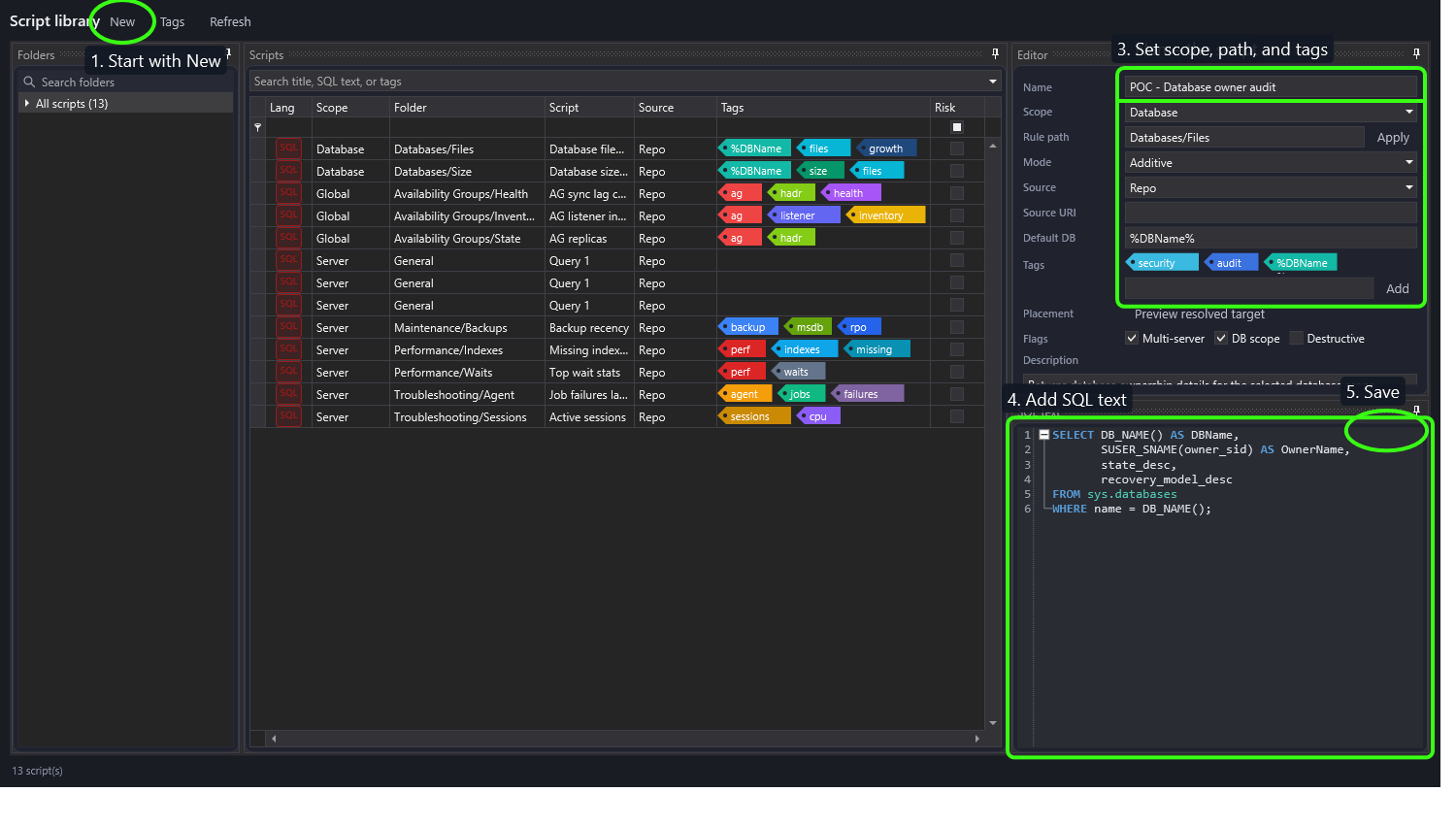
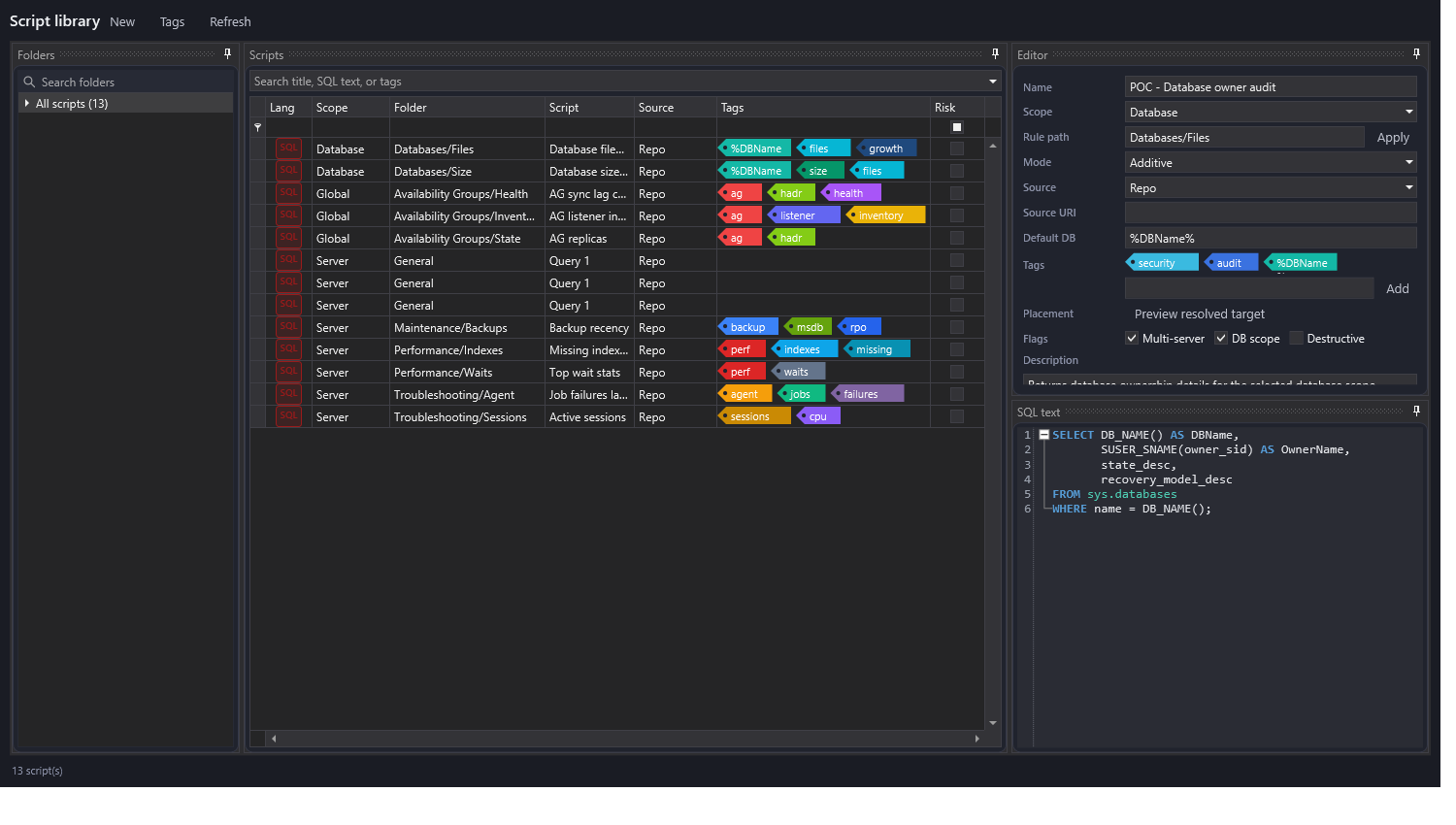
Base capture:
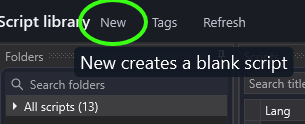
Start A Blank Script
Click New in the Script Library toolbar. This clears the editor and starts a new unsaved library entry.
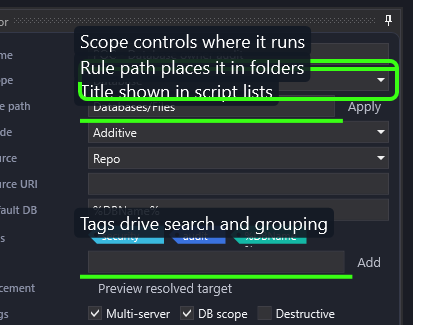
Fill In Script Metadata
Set the script name first. The name is what users see in the Script Library list and in the Query Pilot Library tab.
Choose the script scope:
- Global: general-purpose script that is not tied to a server or database shape.
- Server: server-level script, usually run once per selected instance.
- Database: database-level script, usually paired with database selection or
%DBName%token expansion.
Set Rule path to place the script in the folder tree. The path can create folders as needed under the selected folder. Add tags so the script is searchable by topic, token, feature, or troubleshooting area.
Add SQL Text
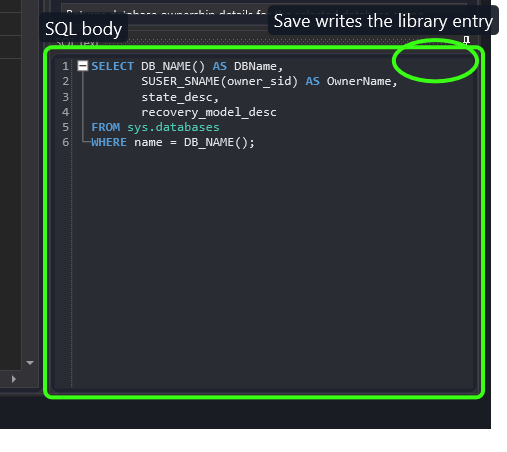
Put the runnable SQL in SQL text. The editor supports SQL coloring and keeps the text exactly as entered so tokens such as %DBName% can be resolved later by the Query Pilot or scheduler.
Click Save to write the library entry, placement rule, and tags.
What Gets Stored
The script definition is stored in dbo.SavedQueryLibrary. Folder placement is stored through dbo.SavedQueryFolder, dbo.SavedQueryFolderMap, and dbo.SavedQueryPlacementRule. Tag names and colors are managed through dbo.SavedQueryTag.
Related: Script Library, Query Pilot, Tag Manager.
Documentation revision: B84E3810BA0EFBF0